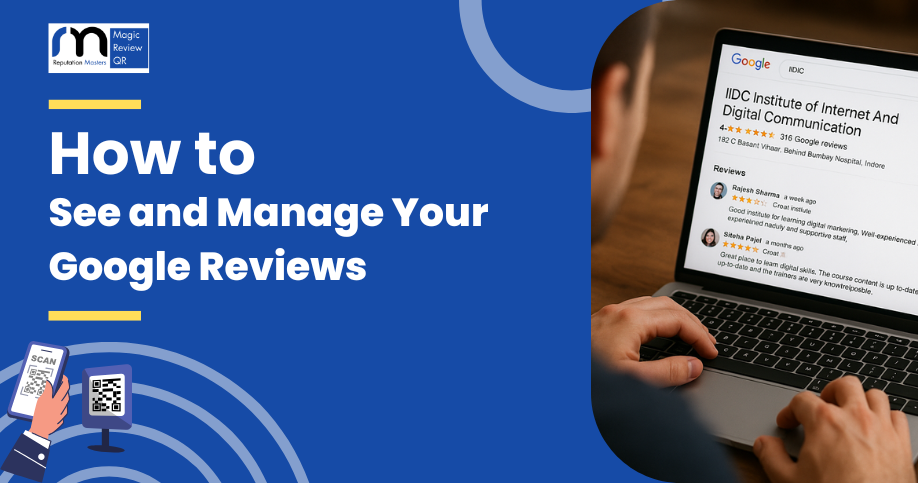
To see and manage your Google reviews as a business owner, you have several easy options:
1. Using Google Business Profile (GMB) Dashboard
-
Log in to your Google Business Profile at business.google.com.
-
Select your business listing.
-
Click on the “Reviews” tab in the left sidebar.
-
Here, you can view all customer reviews, filter by date or rating, and respond directly to reviews.
2. Via Google Maps
-
Open Google Maps on desktop or mobile.
-
Search for your business’s name.
-
Click on your business listing.
-
Scroll down to the “Reviews” section and click “See all reviews” to view detailed feedback.
-
On mobile, tap your profile picture, then tap “Your contributions” > “Reviews” to see reviews you've left or received.
3. Using Google Search
-
Search your business name directly on Google.
-
In the right-hand Knowledge Panel (on desktop) or at the top (on mobile), find the reviews section.
-
Click “See all reviews” to display all customer feedback.
4. Manage Reviews and Respond
-
Always respond professionally and promptly to reviews, thanking positive reviewers and addressing concerns in negative ones.
-
Use your GMB dashboard or Google Maps app to reply directly to customer reviews.
-
Report fake or inappropriate reviews via the dashboard to maintain your review integrity.
Tip: Regularly monitoring your reviews helps you respond to customer feedback in real-time, manage your reputation, and improve your business.
Want an easier way?
You can use review management tools or automation services that alert you of new reviews, streamline responses, and filter spam.
In summary:
-
GMB Dashboard is the central hub for managing reviews.
-
Google Maps and Search are quick ways to view reviews.
-
Respond promptly to build trust and improve your star ratings.
Would you like assistance with specific review management tools or strategies?